OIM Entitlements for Sauron RBAC
OIM entitlements control who can access Sauron endpoints after SSO is enabled. If your team is using Sauron SSO for the first time, decide who should approve access before asking Sauron support to create the entitlements.
OIM entitlement creation requires Sauron-team action. After the entitlements exist, entitlement approvers can add users and approve or reject access requests in OIM.
Which entitlement should I request?
For a team named MyTeam, Sauron creates these OIM entitlements:
| Entitlement | Use it for |
|---|---|
MyTeamAdmin |
Admin users who need administrator access to the Sauron. |
MyTeamViewer |
Read-only users. |
MyTeamEditor |
Users who need Grafana Editor access for dashboards. Grafana 8.x and above only. |
Request the least-privileged role that lets you do your work. If you are not sure which role you need, ask your Sauron owner or OIM approver before requesting access.
Request new entitlements
When your team needs new Sauron OIM entitlements created, post in #sauron-support with:
- Sauron URL.
- Team name. If the name is long, provide a short one-word form and avoid special characters.
- Email IDs of approvers for each OIM entitlement.
Approvers can add users and approve or reject requests for these OIM entitlements.
After Sauron support creates the entitlements, approvers need to submit requests for those entitlements in OIM. The request goes up their management chain for approval. After approval, they become approvers for the entitlements and can ask team members to submit access requests.
Entitlement creation usually takes 15 minutes after Sauron support receives the required team and approver details.
After the entitlements are ready, enable SSO by following Oracle SSO for Sauron Endpoints.
Add users to an OIM entitlement
After entitlements are created, an OIM entitlement admin can add users.
Steps:
- Log in to https://oim.oraclecorp.com.
- Select Request Access.
- Select Request for others.
- Search for the users who need access. You can choose direct reports or find users by email ID.
- Search for the entitlement name.
- Select the entitlement and click Add to cart.
- Click Next.
- Enter a justification, such as
members of [team] group. - Click Submit.
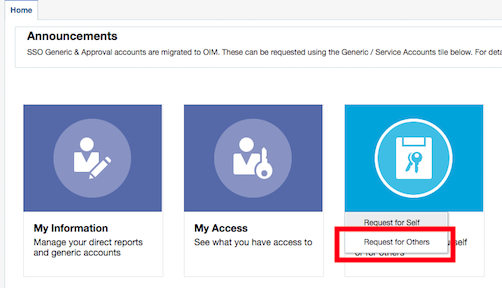
Use Request for others when adding access for team members.
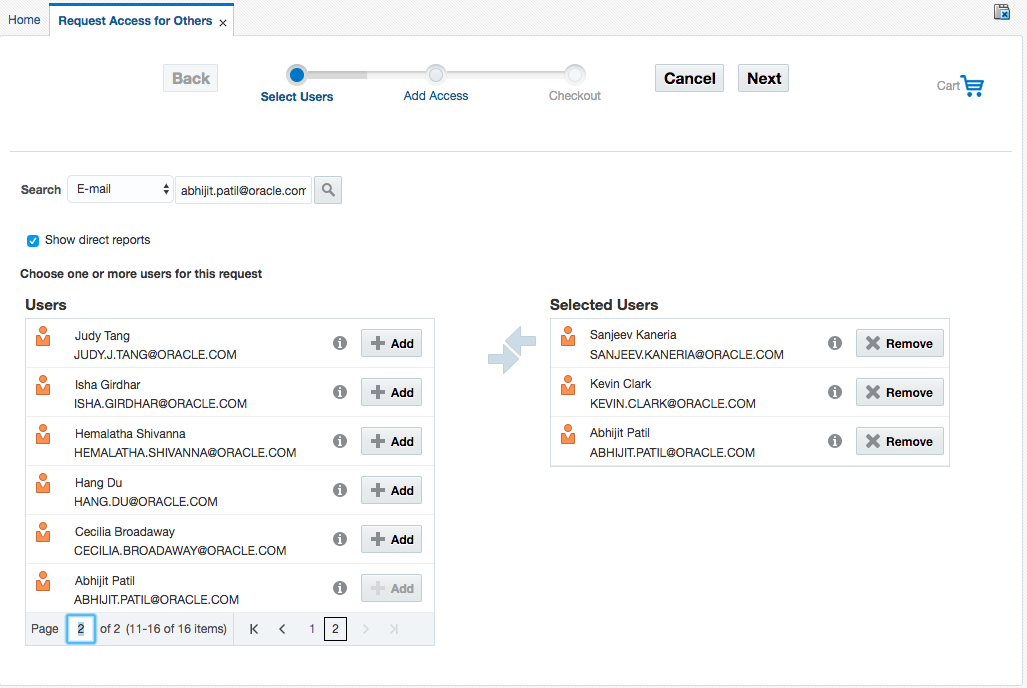
Search for the users who should receive access.
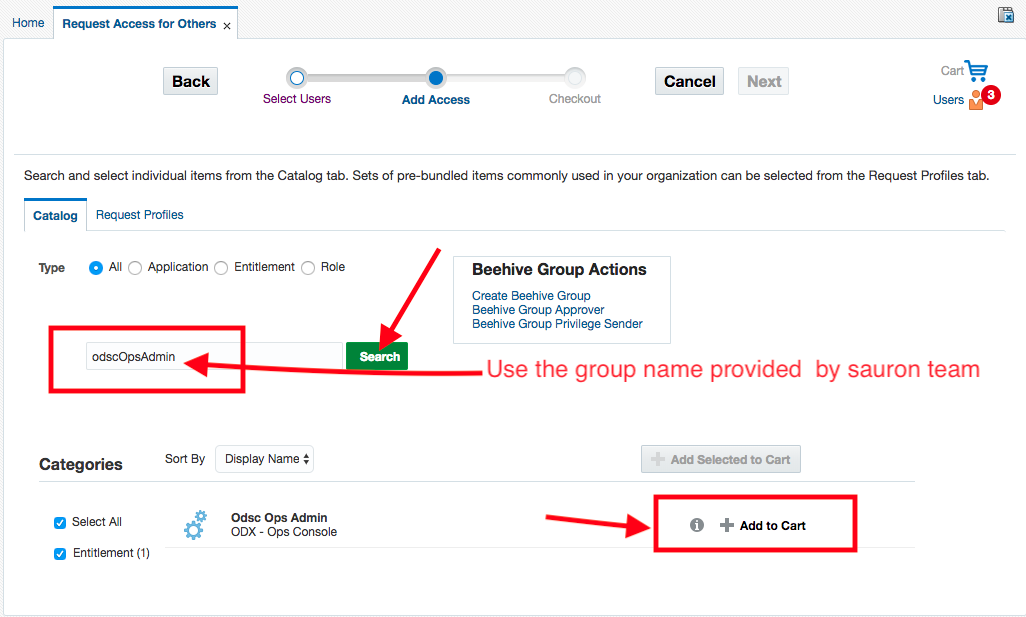
Search for the entitlement name and add it to the cart.
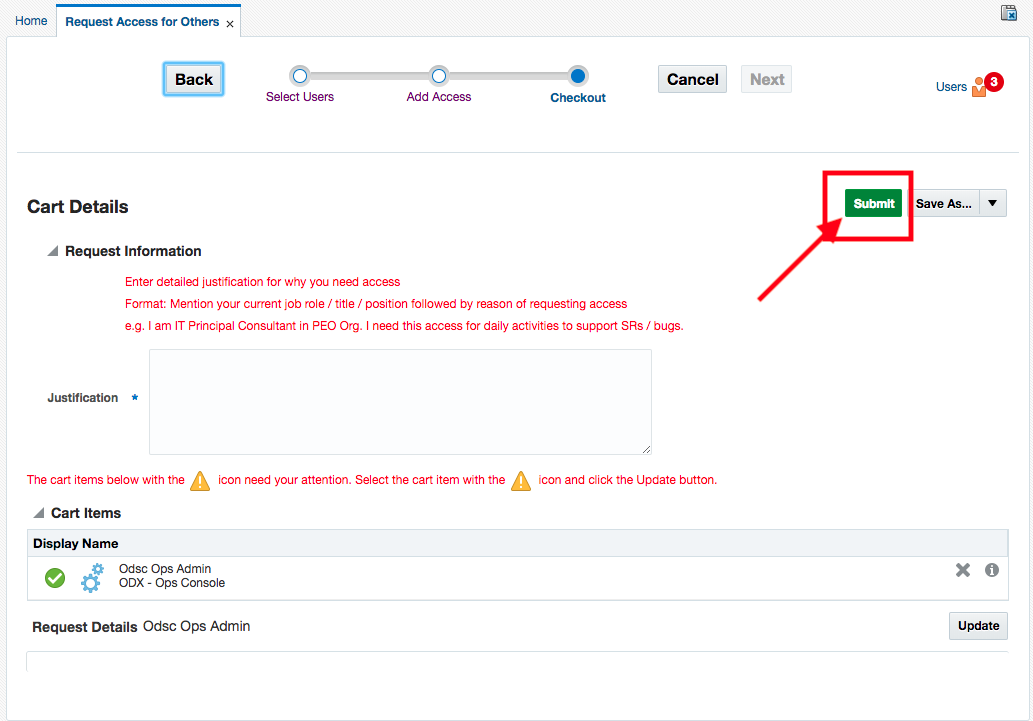
Submit the request with a clear justification.
Self-check before escalation
Most questions for this topic can be resolved with the steps above. For OIM or entitlement questions, collect:
- Sauron URL.
- Component or endpoint.
- Team or service name.
- Expected role: Admin, Viewer, or Editor.
- Exact OIM group name if known.
- Affected user email.
- Authentication method: SSO.
- Exact error/status or screenshot.
- Start time.
- Recent entitlement request, approval, or change.
- Checks completed.
- Production impact, if any.
- Whether the entitlement was just requested, approved, or changed.
- Whether the affected user signed out and back in after approval.